Provisioning Profiles in Apple Developer: Creating and Managing Them
A provisioning profile is the file Xcode needs to build and sign your app. This article goes deeper into creating, updating, and troubleshooting profiles, building on the general Certificates, Identifiers & Profiles overview.
Two ways to manage profiles
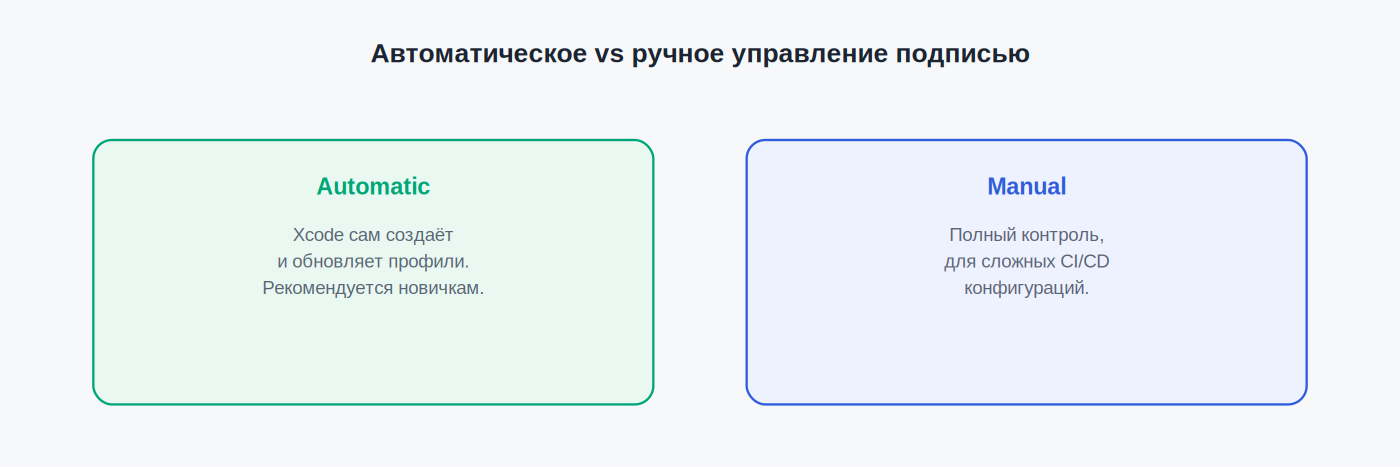
Automatic signing management
Xcode creates, updates, and installs the profiles it needs during a build — the recommended approach for most projects, especially for beginners.
How to enable it: in Xcode, open your target’s settings → Signing & Capabilities → enable “Automatically manage signing” → select your development Team.
Manual signing
Profiles are created and selected manually through the Apple Developer portal — used by teams with more complex CI/CD setups, where automatic management can conflict with parallel builds on different machines.
How to create a profile manually
- Go to developer.apple.com/account → Certificates, Identifiers & Profiles → Profiles.
- Click “+” to create a new profile.
- Choose a type: Development, Ad Hoc, App Store, or Enterprise.
- Select the App ID the profile is for.
- Choose a certificate (Development or Distribution, depending on the profile type).
- For Development/Ad Hoc — select the devices the profile should work on.
- Name the profile and click “Generate.”
- Download the
.mobileprovisionfile and install it by double-clicking (opens in Xcode), or via Xcode → Settings → Accounts → Download Manual Profiles.
When you need to regenerate a profile
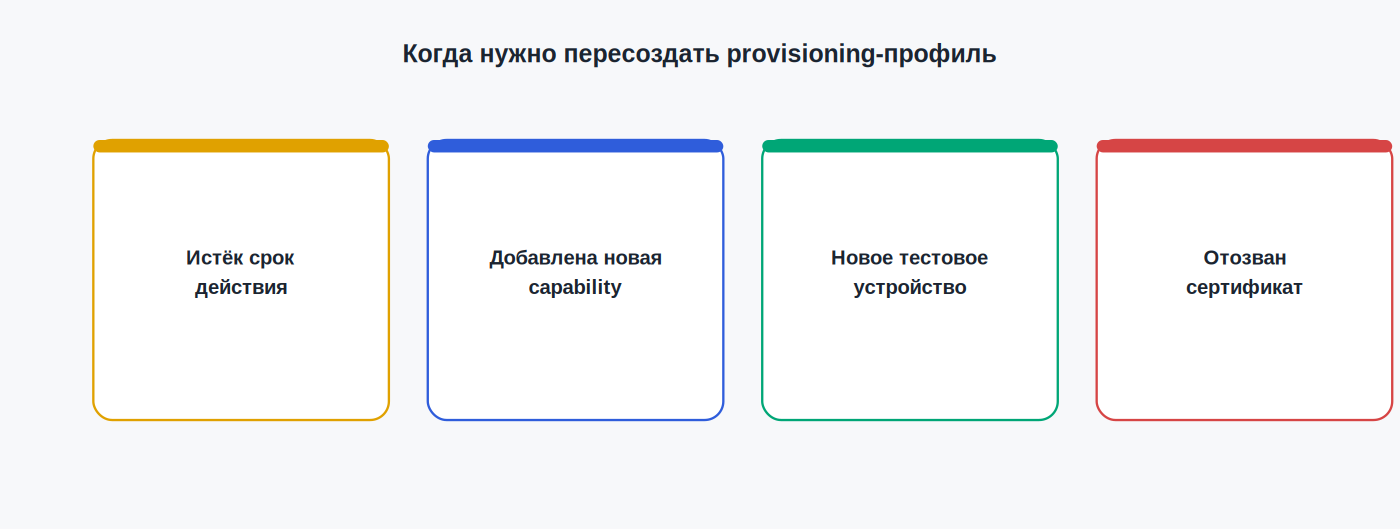
- When it expires — Development profiles typically last about a year, tied to the certificate’s validity.
- When you add a new capability (push notifications, iCloud, App Groups, etc.) — the profile needs regenerating to include the new capability.
- When you add a new test device — for Ad Hoc/Development profiles, the device list is baked into the profile itself; adding a device requires regenerating it.
- When the associated certificate is revoked — if a certificate is revoked (e.g., due to a lost private key), every profile using it becomes invalid.
Common problems
“Profile doesn’t match the entitlements file”
Your app requests a capability the profile doesn’t have. Fix: update the App ID with the needed capabilities and regenerate the profile (or switch to automatic management so Xcode handles it).
“No devices registered” when creating an Ad Hoc profile
Test devices need to be registered in advance under Devices by their UDID, before they’ll appear in the list when creating a profile.
The profile is installed but Xcode doesn’t see it
Usually fixed by: Xcode → Settings → Accounts → select your team → “Download Manual Profiles,” or simply restarting Xcode after installing a new profile.
Managing profiles from the command line
For CI/CD pipelines, it’s often more reliable not to depend on the Xcode UI, and instead use xcodebuild with an explicit provisioning profile via -exportOptionsPlist, or tools like fastlane match, which automate syncing certificates and profiles across a team through a shared encrypted repository.
FAQ
Can I use one profile for multiple targets in the same project?
No — each profile is tied to a specific App ID, and therefore to a specific target. If you have multiple targets with different bundle IDs, each needs its own profile.
What happens if a profile expires but the app is already live on the App Store?
It has no direct effect on an app that’s already published and approved — the profile is needed to build new versions, not to keep an already-released App Store app running.
How do I know which profile type is needed for TestFlight?
Uploading a build to TestFlight uses the same profile type as the App Store — Xcode automatically applies the right one when archiving and uploading via “Distribute App.”
This article is independent and not affiliated with Apple Inc. For official documentation, see developer.apple.com/account/resources/profiles.
Related: Certificates, Identifiers & Profiles: A Beginner’s Guide · Apple Developer 2FA Code Not Received · Apple Developer API & App Store Connect API: Getting Started